

Enhance your images to 2K, 4K, or 8K resolution
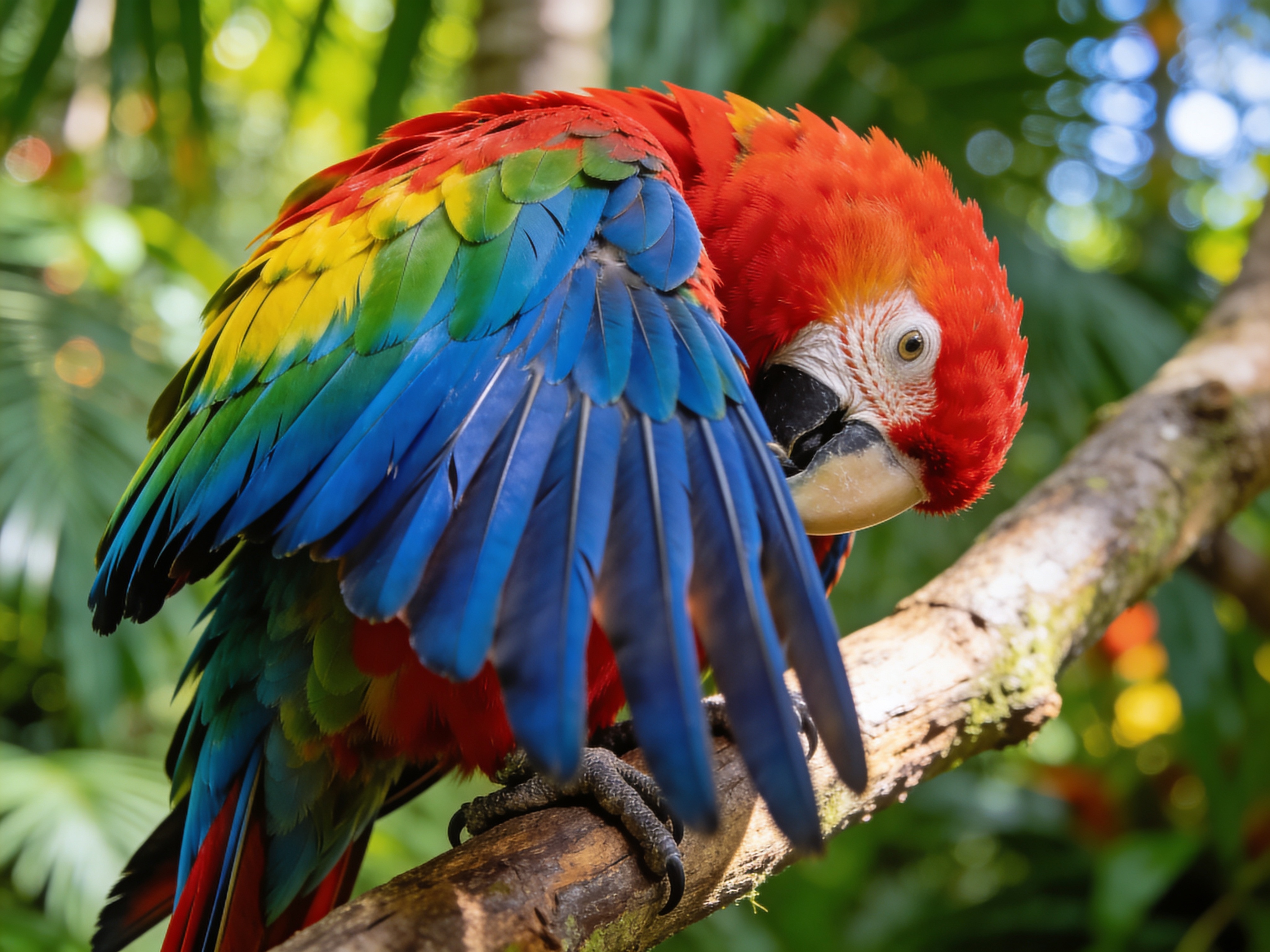
Drag to compare • Upload your image to start
Krea2 AI Image Upscaler for 2K, 4K & 8K Output
Turn a small photo, product shot, or AI-generated image into a larger asset for web, display, or print. Krea2 lets you select a 2K, 4K, or 8K target and export the result as JPEG, PNG, or WebP, so the file fits the next step in your workflow.
Resolution You Can Choose
Select 2K for everyday publishing, 4K for high-resolution screens, or 8K when you need more room for print, large layouts, or tighter crops.
Detail-Aware Enlargement
Instead of only stretching existing pixels, AI analyzes shapes, edges, and textures to build a cleaner-looking larger image while keeping the source composition recognizable.
Workflow-Ready Exports
Download in JPEG, PNG, or WebP. Pick a compact format for web delivery, a high-fidelity file for editing, or the format already used by your publishing workflow.
Upscale for the Destination, Not Just the Pixel Count
The best target resolution depends on where the image will appear. Choose the smallest output that gives your layout enough detail and cropping flexibility.
- • Use 2K for blog graphics, social posts, marketplace thumbnails, and general web publishing
- • Choose 4K for detailed product pages, portfolio displays, desktop wallpapers, and presentation screens
- • Use 8K when preparing large print layouts, exhibition graphics, or source files that may be cropped
- • Keep the original file alongside the upscale so you can compare texture, color, faces, and small text
What AI Upscaling Can—and Cannot—Do
AI super-resolution can make enlargement look more natural than standard interpolation, but it estimates detail rather than recovering information that was never captured.
- • The model studies nearby pixels and image context to predict plausible edges and surface texture
- • Clear source images usually produce more reliable detail than heavily compressed, blurred, or tiny files
- • Upscaling may improve visible softness, but it cannot reliably repair severe motion blur or unreadable text
- • Review faces, lettering, logos, and repeating patterns at full size before using the result in production
Practical Workflows for Creators and Sellers
Krea2 is useful when a good image is too small for its next placement, especially across product, creative, and content workflows.
- • Enlarge a supplier or studio product photo before building store banners, detail crops, or catalogs
- • Prepare AI artwork for a portfolio, wallpaper, poster mockup, or higher-resolution editing canvas
- • Give an older digital photo more usable dimensions before retouching, reframing, or printing it
- • Repurpose one approved campaign image across social, presentation, website, and display layouts
A Three-Step Krea2 Upscaling Workflow
The page keeps the resolution and format choices visible, so you can prepare an output without moving through a separate editor.
- • Upload a JPG, PNG, or WebP image and check that the main subject is already reasonably clear
- • Select 2K, 4K, or 8K, then choose JPEG, PNG, or WebP for the downloaded result
- • Run the upscale, inspect the result at full size, and download the version that fits your project
- • Each completed upscale uses 2 credits, so test an important source at the appropriate target size
AI Image Upscaler Questions, Answered
How can I upscale an image without making it look worse?
Start with the cleanest source available and avoid repeatedly resizing an already compressed file. AI upscaling can create more natural edges and textures than basic interpolation, but “no quality loss” is not literal: the model estimates missing detail. Compare the result with the original, especially around faces, logos, and text.
Should I choose 2K, 4K, or 8K output?
Choose according to the final placement. A 2K file is often enough for web and social content; 4K suits large screens, detailed product pages, and presentations; 8K gives print layouts or aggressive crops more pixels. Larger is not automatically better, because processing and file size also increase.
Can I upscale AI-generated artwork?
Yes. AI-generated images are a common use case when the original render is too small for a portfolio, wallpaper, poster mockup, or further editing. Examine fine patterns, hands, faces, and typography after upscaling, because the model may reinterpret ambiguous details rather than reproduce them exactly.
Which output format should I use: JPEG, PNG, or WebP?
JPEG is practical for photographs and broad compatibility. PNG is useful when you want a high-fidelity editing file or need to preserve transparency already present in the source. WebP often gives a smaller web-ready file. Choose the format required by your editor, marketplace, website, or print workflow.
Can an AI upscaler make a very blurry photo sharp?
It can improve the appearance of mild softness, jagged edges, and low pixel dimensions, but it cannot reliably recover a face, sign, or texture that is absent from the source. Severe motion blur, focus errors, and heavy compression may remain visible or produce invented detail in the enlarged result.
How many Krea2 credits does image upscaling use?
A completed image upscale uses 2 credits. You need to sign in and have enough credits before processing begins. Select the target resolution and output format first, then review the preview before downloading. Keeping the original source also makes it easier to judge whether the larger version suits your intended use.
Prepare a Higher-Resolution Version in Krea2
Upload one image, choose the resolution and file format that match your destination, then inspect and download the enlarged result.
Simple, Transparent Pricing
Choose the perfect plan for your creative needs.
Free
Perfect for trying our Krea 2 image generator
- 6 credits per month
- 2 High quality AI image generations per month
- Standard Quality Images
Great for exploring!
Professional
For serious creators who need professional features
- 500 credits per month
- Up to 166 High quality AI image generations per month
- Up to 50 AI video generations per month
- Advanced Quality
- Every image you generate is 100% watermark-free
- Commercial use license
✓ Cancel anytime — no questions asked
Enterprise
For studios and teams creating at scale
- 5000 credits per month
- Up to 1666 High quality AI image generations per month
- Up to 500 AI video generations per month
- Advanced Quality
- Every image you generate is 100% watermark-free
- Commercial use license
✓ Cancel anytime — no questions asked
Model credit costs
With a reference video, credits are charged on output duration plus the total reference-video duration.